
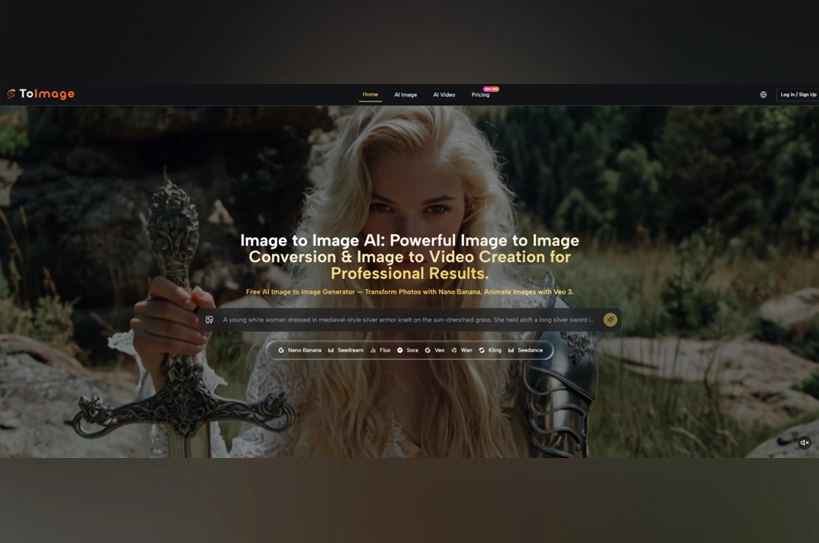
Most still-to-video stacks break at the handoff. You finish a frame in one tab, export, open a second product, re-upload, rewrite the brief, then wait for motion that may ignore the edit you already approved. I tested a closed loop with Image to Image tools on ToImage: keep the approved still in the same panel, pick Veo, add a motion prompt, and generate an about eight-second clip with native audio. The claim to prove is continuity of the desk, not another pretty demo reel.
The old cost is not only minutes. By the time a separate video tab loads, someone has already forgotten which prompt kept the label sharp. Teams then blame AI video quality when the real failure was splitting still judgment and motion judgment across two products. Fix that by keeping the approved still visible while you add motion and sound.
Start From A Still You Already Like
Do not animate a soft draft. Soft edges, warped hands, or melted packaging text get worse once motion starts. The goal is narrow: take one approved frame and ask for a short clip with sound in the same workspace. If the still would fail a brand review, the clip will fail louder. Save the still prompt next to the file name so the motion pass does not invent a new identity brief from memory.
| Desk shape | What you do | What usually breaks |
| Two-tool hop | Export still, re-upload elsewhere | Lost prompt context; identity drift |
| Timeline editor | Manual move on every SKU | Hours before one 8s test |
| Same-panel still to Veo | Approve frame, push ~8s with audio | Only weak source photos remain |
If your bottleneck is “we already like the photo,” the hop tax is the enemy. If your bottleneck is “we have no good photo,” fix the still first. No eight-second clip repairs a soft product plate. Spend still credits until the frame would ship as a static ad, then move to Veo.
Clean Text And Hands Before Motion
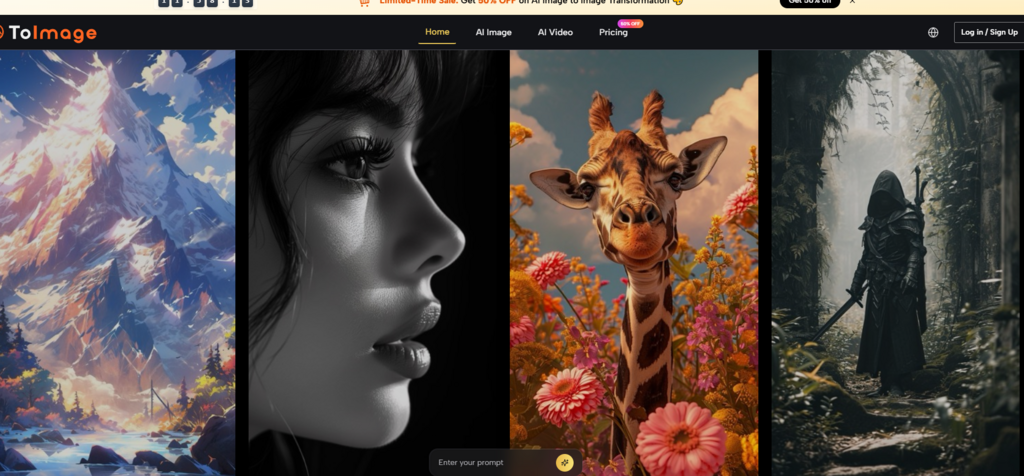
Crop to the subject you want the camera to honor. Remove clutter that will jitter. If packaging text must stay readable, clean that in the still pass with Nano Banana or Qwen Image Edit before you touch Veo. ToImage keeps those still models in the same workspace, so the cleanup does not become another export ritual. Check hands, edges, and label type at 100% zoom. Motion will not invent sharp text from a melted still.
Spend one more still generation on cleanup if the label is soft. That credit is cheaper than three bad Veo runs. If a hand is warped, fix or crop it in the still. Warped hands in motion look like a different product fault and waste the review meeting.
How To Pick Vedio And Add Motion
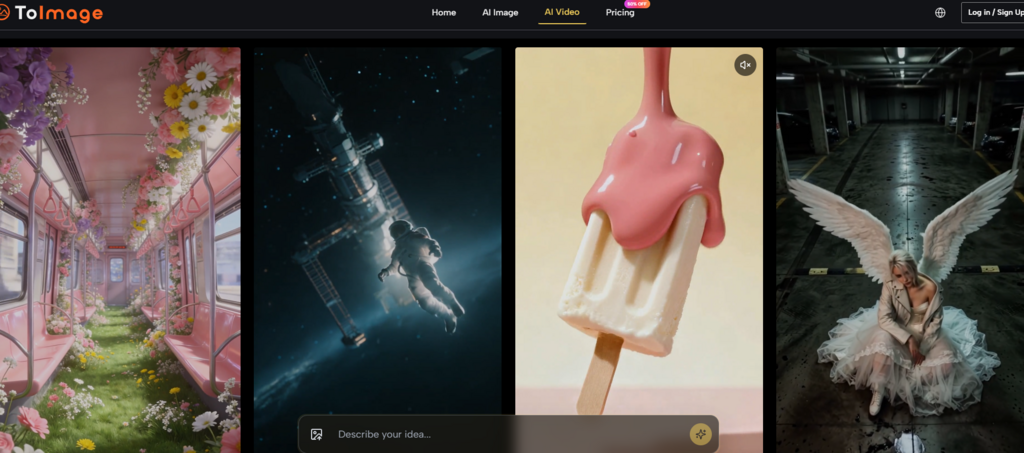
With the approved still open, switch to the image-to-video path and pick Veo 3 (or the Veo 3.1 Lite/Basic/Premium option your account shows). Keep the motion prompt short and physical: slow push-in, slight product turn, soft ambient room tone. Do not rewrite the product identity in the motion line. The still already holds the look. Native audio is part of the same generate step, so you are not exporting silence into a third tool for a first pass.
- Confirm the still is the one you would publish as a static ad.
- Select Veo in the same panel.
- Write one motion sentence plus any audio cue you need.
- Generate and wait for the about eight-second clip with native audio.
- Play the clip beside the still before you accept it.
Keep Motion Prompts Short And Physical
Good: “Slow camera push toward the bottle, gentle rotation, soft studio room tone.” Bad: a paragraph that also changes brand colors, invents a new label, and adds three characters. In my testing, long storyboard prompts fight the still. Short motion lines respect it. If you need a bigger story, storyboard after you have one clean eight-second proof, not before.
Audio cues should stay simple too: room tone, light whoosh, quiet bed. Do not ask for a full commercial voiceover script on the first run if you only need proof that native audio attaches to the move.
Leave Identity Out Of The Motion Line
If the face or product mark must stay locked, say “keep the same face / keep the same label” once, then stop. Do not re-describe bone structure or typography. That work belonged to the still pass. The motion pass only adds camera and sound. When identity drifts mid-clip, go back to the still or shorten the motion ask before you rewrite the person in the video prompt.
Check The Eight Second Clip And Audio
Play the clip next to the still, not alone. Watch for label melt, face drift, hand warp, and audio that feels glued on. Native audio on Veo is the useful part of the same-panel claim: you should hear a track that matches the motion without exporting to a third tool for a first pass. Accept the clip only if the still’s identity survives the eight seconds.
That is where AI Image to Image editing and Veo video share one desk on ToImage. Reject if text softens, if the subject morphs mid-move, or if the sound fights the picture. One clean still plus one clean clip beats five orphan exports scattered across desktop folders.
Pass Or Fail Beside The Still
Write three checks on a sticky: label readable at second four, face or product mark stable at second six, audio not empty or mismatched. If any check fails, fix the still or shorten the motion ask before you burn another Veo run. Do not “fix” a soft clip in a separate editor until the source frame is honest. Morning reviews go faster when the sticky is filled before anyone opens taste arguments.
Common Mistakes On First Video Runs
First runs fail in predictable ways. People animate a draft still. People write a full commercial script into the motion prompt. People judge the clip in isolation and miss face drift that is obvious next to the still. People hop to a second video product mid-test and lose the winning still prompt. Fix those before you change models.
- Animating before the still would pass brand review.
- Motion prompts that rewrite identity instead of camera.
- Judging audio without watching the still side by side.
- Exporting early and forgetting which still prompt won.
- Filling every concurrent slot with Veo before the still is locked.
Kling, Seedance, Wan 2.5, or Runway Gen 4 can sit in the same workspace later. First prove the still-to-Veo loop on one approved frame. Model hopping is a second experiment, not a rescue for a soft source photo.
Keep Or Switch Tools After The Clip
Keep this desk if your week is “approve still → need an eight-second clip with sound without leaving the panel.” Switch if you need long-form editing, multi-shot timelines, or precise frame-by-frame compositing. ToImage is enough for the closed still-to-Veo test because the still models and Veo share one workspace. Bottom line: start from a still you already like, pick Veo, check the eight-second clip and audio beside that still, then keep or drop the tool on that evidence alone.
(DISCLAIMER: The information in this article does not necessarily reflect the views of The Global Hues. We make no representation or warranty of any kind, express or implied, regarding the accuracy, adequacy, validity, reliability, availability or completeness of any information in this article.)
Related Articles:
- How Marketers Are Using a 50-Reference AI System to Dominate Paid Ads
- Why SuperMaker AI Is the One-Stop Creative Platform You’ve Been Looking For
- Ten Image To Video Platforms Worth Testing In 2026